How to Create an AI Teammate in Roomie - Roles, Scope and Permissions

An AI teammate is an agent that works under you, not as you. You give it a role, decide which projects and rooms it can see, choose who it may message, and set what it can do on its own. Here is the seven-step setup, and what it can never do.
Most AI assistants at work run with your permissions. They can see everything you can see, and when they act, they act as you.
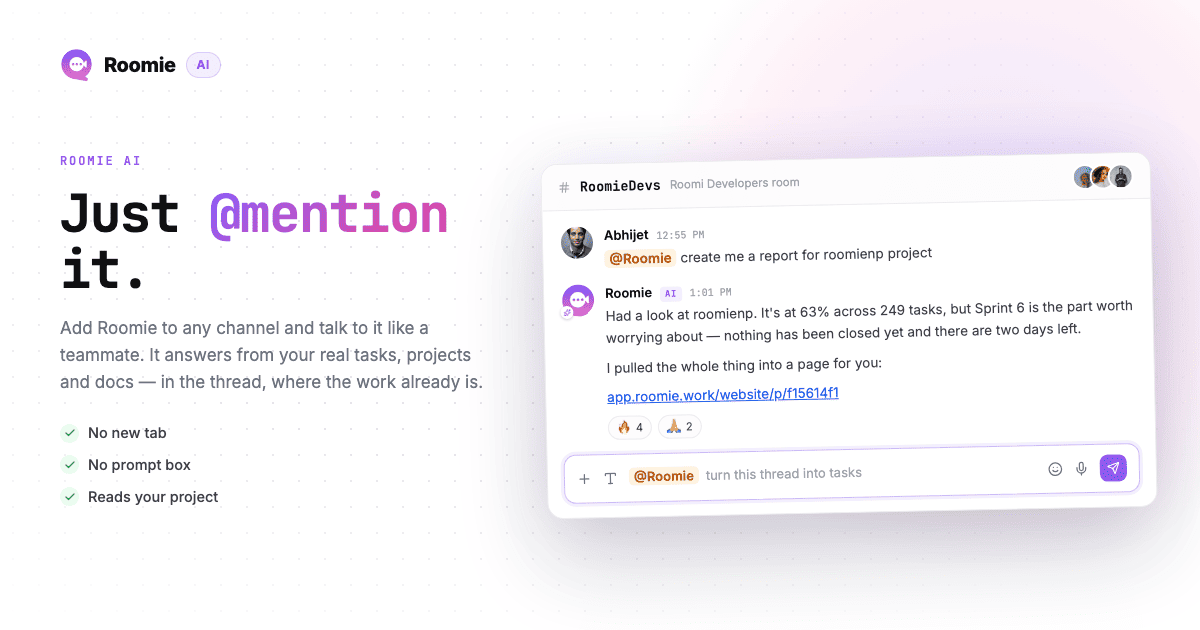
An AI teammate in Roomie works the other way round. It is a member of your workspace with its own name, its own scope and its own limits. It joins the projects and rooms you put it in, and it can only see what is in them. People @mention it like anyone else. It reports to one person, and it asks that person before doing anything you have not already approved.
You create one at AI Team → Add teammate. There are seven steps and the whole thing takes a few minutes.
Step 1: Name and face
Give it a name people will @mention, and either a face, a photo or a colour.
Teammates appear in rooms and member lists like everyone else, but they are marked as AI. Nobody on your team should ever be unsure whether they are talking to a person.
Step 2: Pick a role
The role sets how the teammate thinks and what it starts out able to do. There are five:
- Project Manager - keeps sprints moving, flags blocked and overdue work, assigns tickets, runs check-ins.
- Sales - follows up leads, reads the pipeline and mail, writes internal notes, drafts replies.
- Marketing - helps with campaigns, reads the pipeline and templates, drafts content and notes.
- Personal Assistant - works for you: reads your mail and calendar, sums up what matters, drafts replies, books meetings.
- Custom - no playbook. You write the job and the rules yourself.
You can pick more than one if the teammate covers more than one job, and you can reword any of it later.
Then choose who it reports to. This matters more than it looks. A teammate answers to exactly one person. That person can pause it, see everything it has done, and is the one asked whenever something needs a human.
Step 3: Decide where it works
The teammate joins these as a member and can only see what is inside them.
- Projects - the tickets, sprints and boards it can read and work on.
- CRM spaces - the leads, clients and deals it can see.
- Rooms - where people can @mention it.
Start small. One project and one room is a sensible first teammate. You can add more at any time, and it is much easier to widen scope later than to explain why an agent read something it should not have.
Step 4: Decide who it talks to
By default a teammate only answers where it is mentioned. It never starts a conversation unless you let it.
You can allow it to:
- Message people directly - a DM when something is genuinely theirs, like a ticket that has been blocked for three days. A few a day at most.
- Create rooms - open a room for a launch, an incident or a client, with the people it needs.
You can restrict both to a specific list of people. Leave the list empty and it can reach anyone who already shares a project or room with it.
You can also tick mailboxes it may read. Two things about that: it is read-only, and the teammate can never send. Anyone else on the team can lend theirs later from the teammate's own page.
Step 5: Brief it like a new hire
Roomie starts you from the playbook for the role you picked, and you edit it.
There are two boxes. The job is what the teammate is for, what good looks like, and what to watch out for. Guardrails are the lines it never crosses.
The teammate reads both before every single reply, so this is where team-specific knowledge belongs - how your sprints run, which client is sensitive, what you never want chased on a Friday.
Sending email, invoices and campaigns is already off-limits before you write a word.
Step 6: Give it something to read
Point the teammate at a wiki space. It reads that space before answering but cannot change it.
What it learns goes into its own memory and its own notes pages, one per room and project. Nothing floods your wiki, and you can read along to see what it has picked up.
You can also have Roomie create a fresh space just for that teammate, or skip this entirely and add one later.
Step 7: Set what it can do on its own
This is the step worth slowing down for. Every permission has three settings:
- Off - it cannot do this at all.
- Ask first - it prepares the action and asks the person it reports to.
- On - it does this by itself.
Permissions are grouped into work (tickets, sprints, boards), chat and calendar, CRM and marketing, websites, and knowledge and mail. Anything that creates work starts on Ask first.
Once the teammate exists, its page lists the same thing in three groups: what it does on its own, what it asks first about every time, and the line at the bottom covering what only a person can ever do.
The useful rule: turn on only what you would trust a new hire with in their first week. Reading, commenting and drafting are safe to leave on. Assigning, closing and creating are better on Ask first until you have watched it work for a while.
What it can never do
Five things stay with a person no matter how you set the switches. A teammate can prepare them and ask, but it cannot do them:
- Send emails, replies or campaigns
- Send invoices
- Publish websites
- Delete anything
- Change who is in a project, billing, or workspace settings
This is why a teammate can read your mail and draft a reply, but the reply sits there until you send it.
After you add it
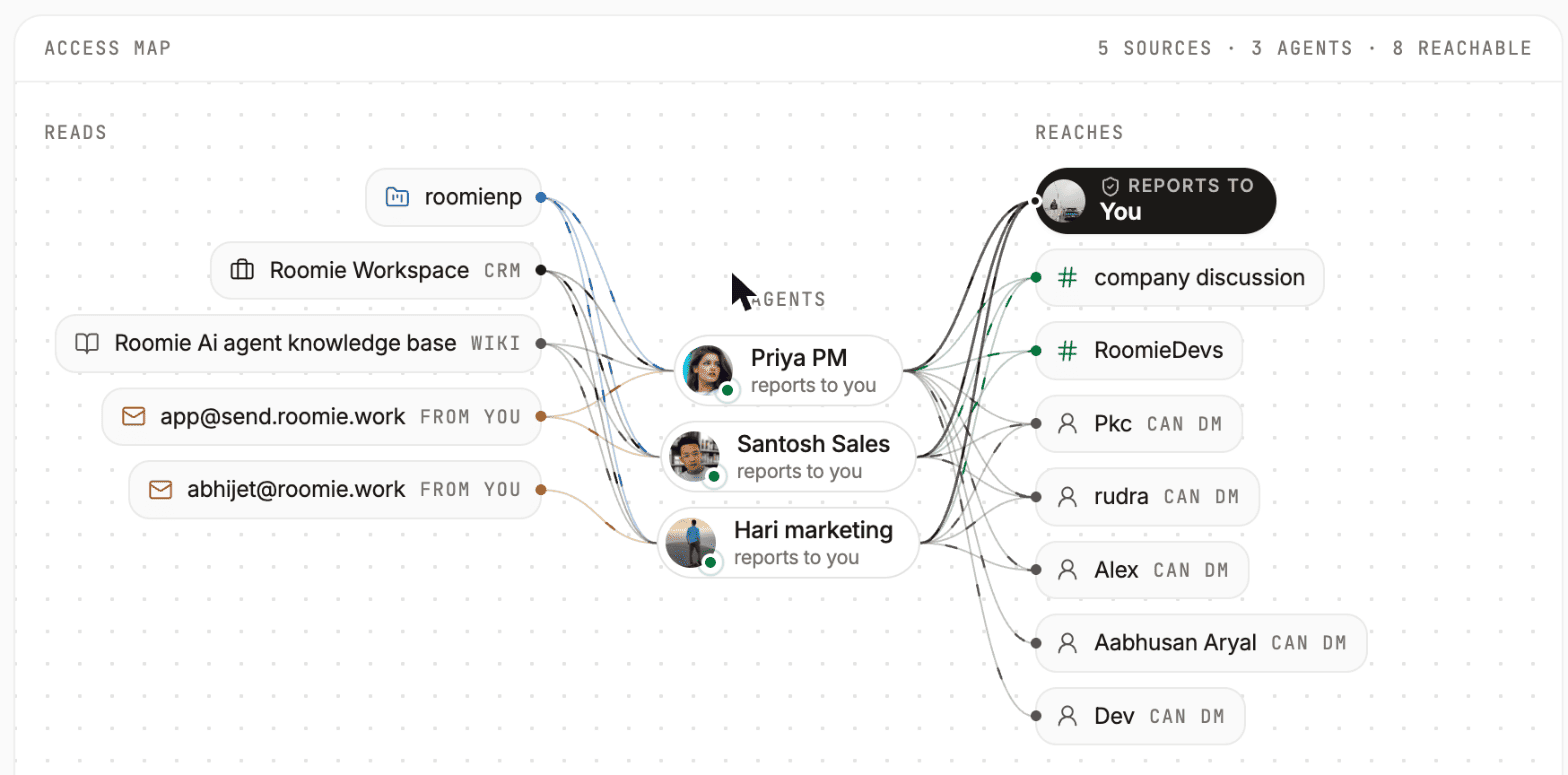
The AI Team page shows an access map for the whole workspace: every source your teammates read on the left, the agents in the middle, and everyone and everything they can reach on the right. It is the fastest way to answer "what can our AI actually see?" without opening seven settings pages.
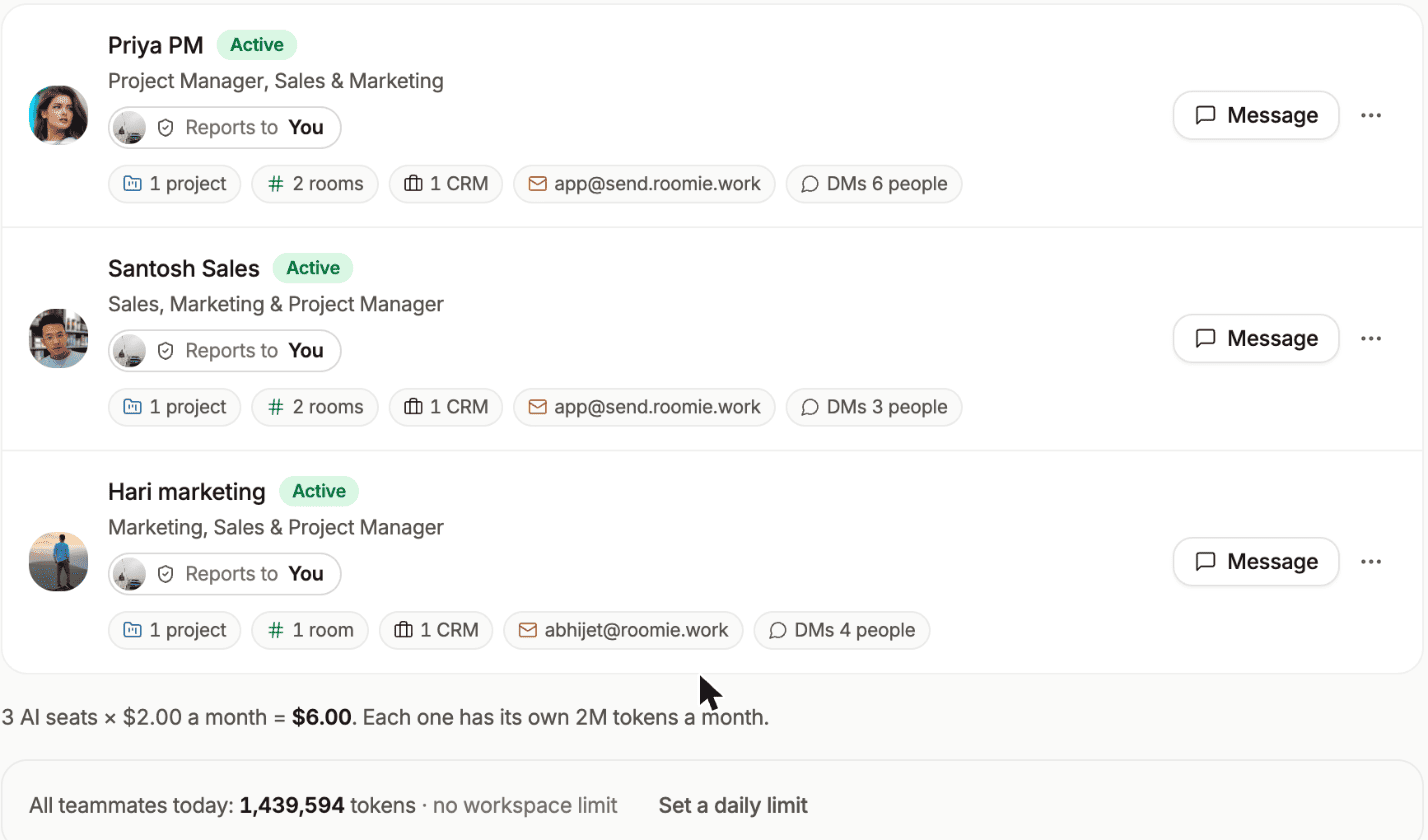
Each teammate also gets a card showing its roles, who it reports to, and its scope at a glance - projects, rooms, CRM spaces, mailboxes, and how many people it can DM.
What it costs
An AI teammate is an AI seat: $2.00 a month, the same as a person, with its own 2 million tokens a month.
You can set a daily token limit for the workspace if you want a hard ceiling.
A sensible first teammate
If you are not sure where to start, build this one:
- Name it something obvious, like Priya PM.
- Role: Project Manager. Reports to you.
- Scope: one project and one room.
- Let it DM people, restricted to that project's team.
- Brief: how your sprints run and what counts as blocked.
- Knowledge: skip for now.
- Permissions: comment on tickets On, everything that creates work on Ask first.
Leave it a week. Read what it does. Then widen the bits you trust.
AI teammates are in beta. If you want to try one and need extra credits while you test, get in touch and we will sort it out.