How the Roomie Tag Works - An AI Teammate You @mention in Any Channel
Add Roomie to a channel and @mention it like a teammate. It answers from your real tasks, projects and docs, shows you every step it takes, and asks before it builds the wrong thing. Here is how to set it up and how teams actually use it.
Most AI at work lives in a separate tab. You open it, paste in some context, explain the situation, get an answer, then paste the answer back into the conversation where the work actually happens.
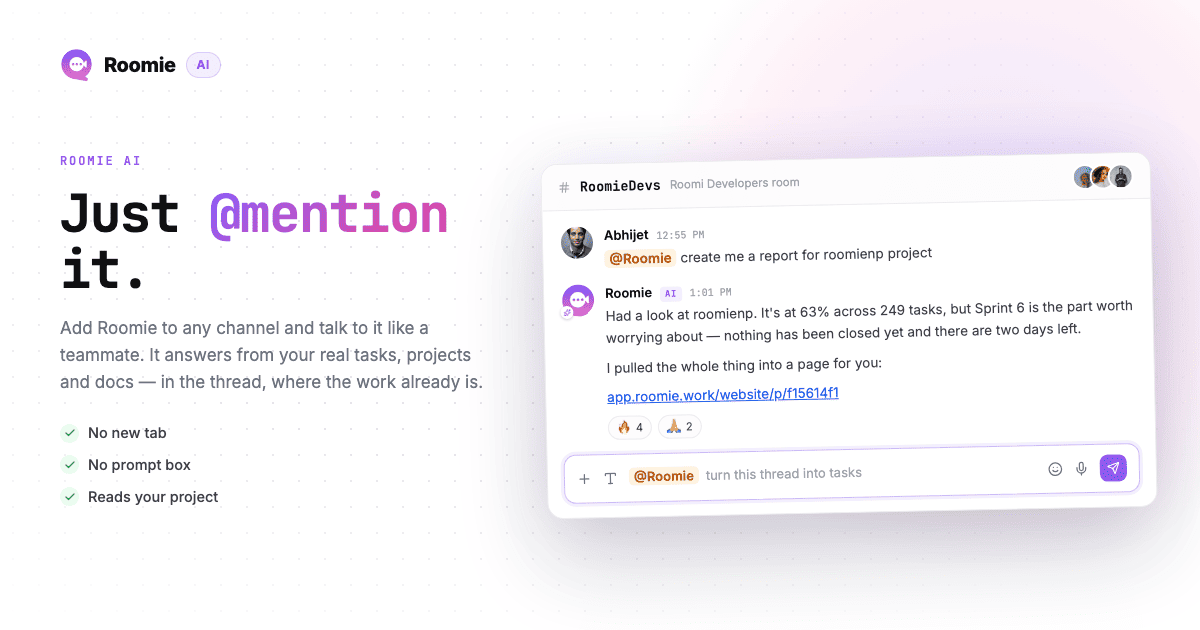
The Roomie tag removes all four of those steps. You add Roomie to a channel, and from then on you talk to it the way you talk to anyone else on the team: you @mention it in the thread where the discussion already is. It answers from your real tasks, projects, boards and docs.
No new tab. No prompt box. No copy-paste.
Watch it first: Your AI teammate lives in the chat — meet @roomie — the whole thing in a couple of minutes, then come back here for the setup.
What the Roomie Tag Actually Is
Roomie AI is a member of your channel. It has an avatar, it posts messages, and it replies to the message that mentioned it.
The difference from a normal chatbot is what it can see. When you ask "what is the status of the roomienp project", it does not guess from the conversation — it searches your workspace, reads the project's task data, and answers with real numbers. When you ask it to create a task, it creates the task.
Three things follow from living inside the channel:
- Everyone sees the answer. Ask about sprint health in the team channel and the whole team reads the same reply. It is not locked in one person's private AI session.
- The context is already there. The bot reads the recent conversation in the channel, so "make me a report for that" usually just works.
- The answer stays where the decision happens. Six weeks later the reasoning is in the thread, next to the messages it came from.
Step 1: Add Roomie to a Channel
Open the channel, then open its settings from the menu in the channel header. Scroll to the Roomie AI section and turn it on.

Three things to know here:
Only admins and moderators can add it. If you are a regular member of the channel you will see a note saying Roomie is not in the channel and that an admin has to add it.
It is billed to whoever adds it. The AI usage for every run in that channel is charged to the account of the person who switched it on, not to whoever mentions it. If you are the admin adding Roomie to ten channels, that is ten channels billing to you.
Scope it to projects. Under Project scope you pick which projects Roomie can read and manage tasks in. This is the setting worth spending a minute on. A channel for one client should be scoped to that client's project — then the bot cannot pull numbers from an unrelated project into that room, even if someone asks it to.
Step 2: @mention It
Type @ in the message box and pick Roomie from the list, then write your question in plain language.

Pick Roomie from the dropdown rather than typing the text by hand — that is what attaches the actual mention, which is what wakes the bot up.
Then ask for what you want:
@Roomie what is the status of the roomienp project and how many tasks are overdue?It replies in the channel, quoting your message so the exchange reads as a pair:

Notice what it did not do: it did not open a new thread, it did not ask you to switch views, and it did not make up the numbers. Status answers come from your project's own data, and it tells you how fresh that data is.
Step 3: Watch It Work
Real questions take real work — searching tasks, checking a sprint, reading a board. While that happens, the typing indicator tells you what it is doing right now, step by step.

You will see it move through the actual steps of the job: Roomie · Searching tasks…, Roomie · Checking project status…, Roomie · Listing labels…, and Roomie · Thinking… in between while it decides what to do next.
This matters more than it sounds. A bot that sits silent for forty seconds feels broken, and people give up on it. A bot that says "searching tasks" is obviously working, and you can tell from the step whether it understood the question — if you asked about a sprint and it says "searching boards", you already know the answer is going to miss.
Step 4: Answer Its Questions With One Click
Some requests are too vague to act on. "Create me a report" — about which project, over what window, for whom? A bot that guesses wastes a minute of your time and produces the wrong artifact.
So Roomie asks first, in one batch, and it asks as buttons rather than a wall of text:
Pick the options, type anything it could not guess, and hit Send answers. Your answers go back as an ordinary reply and it carries straight on with the job.
Two details that make this fast:
- Every question ships with a suggested default. Skipping a question is a valid answer — it means "use your suggestion". You can answer a three-question card by clicking Send answers and nothing else.
- It only asks once per task. After the answers land, it builds the thing. It will not come back with a second round of questions.
Step 5: Keep Talking Without Mentioning It Again
Once Roomie has replied, you are in a conversation. You do not need to @mention it every time.
- Reply in a thread on its message and it answers in that thread, remembering everything already said.
- Quote-reply its message in the channel and it continues the same conversation inline.
That is what makes follow-ups feel normal: "now group those by assignee", "make that a task for Alex", "same thing for last sprint". Each one lands in context.
What It Can Actually Do
Roomie is not a search box with a personality. The same toolset that powers Roomie's AI chat is available to the tag:
Read and search — tasks, boards, projects, sprints, releases, labels, project members, and your knowledge base of past messages. Ask it to find something and it looks, rather than recalling.
Report status — project, board, sprint and release snapshots, with the timestamp of the data it used. It leads with how fresh the snapshot is instead of pretending it is live.
Create work — tasks, boards, projects, sprints, releases, workflows. It will not create a heavyweight thing like a project or a board as a side effect of another request; it asks first.
Update tasks — priority, status, assignee, due date, sprint, release, labels, ticket type.
Build artifacts — a report page or a slide deck built from your real numbers, posted back to the channel as a link.
How Teams Actually Benefit
The setup takes two minutes. Here is where the time actually comes back.
The standup that writes itself
Before the daily, someone asks in the team channel:
@Roomie what moved on the board yesterday, and what is blocked?Everyone reads the same answer in the same place, thirty seconds before the call. Nobody spends ten minutes assembling it, and nobody has to trust one person's memory of it.
Onboarding a new engineer
A new developer asks "what is ROOMIENP-212 about?" in the dev channel. Roomie pulls the task, the related messages, and the surrounding context. They get an answer without interrupting anyone, and the answer is visible to the rest of the channel — so if it is wrong, someone corrects it publicly and the correction is in the thread too.
Sprint hygiene nobody wants to do
@Roomie which tasks in this sprint are unassigned or have no due date?This is the work that quietly rots a board. It takes one message instead of twenty minutes of filtering, and because it happens in the channel, the fixes get picked up by the people reading.
A client update without the assembly
Scope a client channel to that client's project, then ask for a status page. You get a link built from the real numbers, in the room where you are already talking to them about the work.
The compounding one: decisions keep their context
This is the benefit nobody puts on a feature list. When the answer is generated in a private AI tab and pasted in, the reasoning is gone. When it is generated in the thread, the question, the steps, the answer and the discussion that followed sit together forever. Search finds all of it later.
Getting Better Answers
Name the thing. "The roomienp project" and "Sprint 6" beat "our project" and "this sprint". The bot can search for the right one, but naming it saves a step and removes the chance it picks the wrong one.
Ask for the shape you want. "As a bullet list", "top five by priority", "just the count". It is writing into a chat channel, so a request for brevity is worth making.
Ask one thing per message. Three questions in one mention gets you a long reply that is hard to act on. Follow-ups are free — you do not need to re-mention it.
Be specific about writes. "Create a task in roomienp called X, assign it to Alex, due Friday" is a single confident action. "Sort out the backlog" is going to become a question card.
Where the Boundaries Are
Worth knowing before you roll it out:
It only sees what it is scoped to. Project scope is a real limit, not a suggestion. If a project is not in the channel's scope, the bot cannot read its tasks in that channel.
It answers in the channel it was mentioned in. Everyone who can read the channel can read the answer, including any workspace data in that answer. Pick which channels get the bot with that in mind.
Bots do not trigger bots. Messages posted by Roomie or by an automation never wake the bot up, so it cannot end up talking to itself.
Big writes get a question first. Bulk changes and heavyweight creates are hard to undo, so the bot describes what it would change and asks which parts to do.
Try It
Open a channel where work actually gets discussed — the busiest one, not a test room. Add Roomie in the channel settings, scope it to that channel's project, and ask it the question you were about to go look up yourself.
Runs use your workspace's AI credits, billed to whoever added the bot to the channel, so a busy channel is worth watching for the first week.
If you would rather see it before you set it up, the walkthrough is here: Your AI teammate lives in the chat — meet @roomie.